
01 · Free
Keep it local.
Set up Ollama and a model with the app’s setup assistant. After the download, use local AI on your Mac, even offline.
On your Mac
The AI terminal for your Mac
You bring the ideas. AITerm helps with the commands. Describe what you want, understand what comes back, and keep making things.
Free to start. Free to keep. No account needed.
Apple Silicon · macOS 13 or later
Frontispiece Plate I
A real Mac terminal. With a helping hand built in.
Plain English welcome · Your choice of AI · You stay in the loop
Find your flow
For the command you forgot.
The error you haven’t seen before.
The idea you’re ready to try.
Say what you need
Find a file. Check a project. Work through a task. Ask in plain English, then review or edit the suggested command before you run it.
“Show me what changed in this project”
Keep the momentum
Use /fix for a suggested next step, or /explain to understand the output. Add context and work through the problem together.
“We use pnpm in this project”
Feel at home
Keep your shell, SSH, and favorite command-line tools. Organize your work in tabs and split panes. Reopen a saved workspace and pick up where you left off.
Your project, right where you left it.
Big plans start with a little prompt.
Find the PDFs in my Downloads folder
find ~/Downloads -type f -iname '*.pdf' Look through Downloads and its subfolders for PDF files.
~/Downloads/project-brief.pdf ~/Downloads/receipts/ september.pdf
What does “address already in use” mean?
Another process is already using that port.
Your app is trying to listen on a port that another program has open. Find the process before deciding what to do next.
For example, inspect port 3000 with:
lsof -i :3000
Then review which process is using it.
Show me what changed in this project
git status --short See changed, staged, and untracked files in your Git project.
 M README.md
 M src/app.ts
?? notes.md
Made for your Mac
A native Mac app with the everyday details that make it feel like yours.
Your workspace
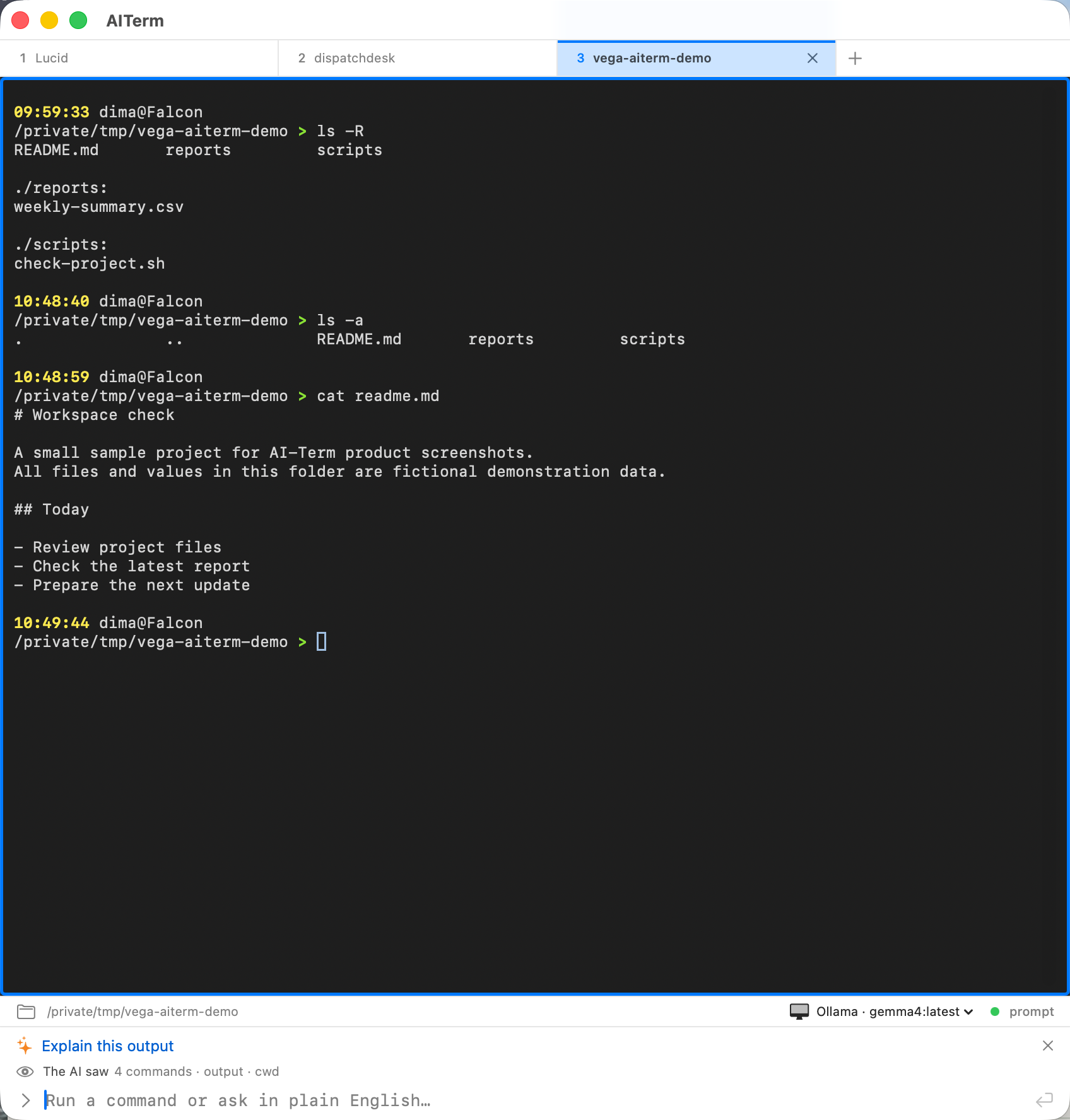 (full size, opens in a new tab)
Plate II A familiar space. More ways forward. Your terminal, project, and AI in one view.
Real app capture with sample project data. Click the image for a closer look.
Tabs & split panes · Saved workspaces · Searchable history · Themes · Automatic updates
| New tab | ⌘T |
|---|---|
| Split right | ⌘D |
| Split down | ⌘⇧D |
| Command palette | ⌘K |
| Command history | ⌘Y |
| Explain output | ⌘⇧E |
Bring your kind of smart
Start with a model on your Mac. Bring a cloud connection. Use a subscription you already have.
Your choice of AI
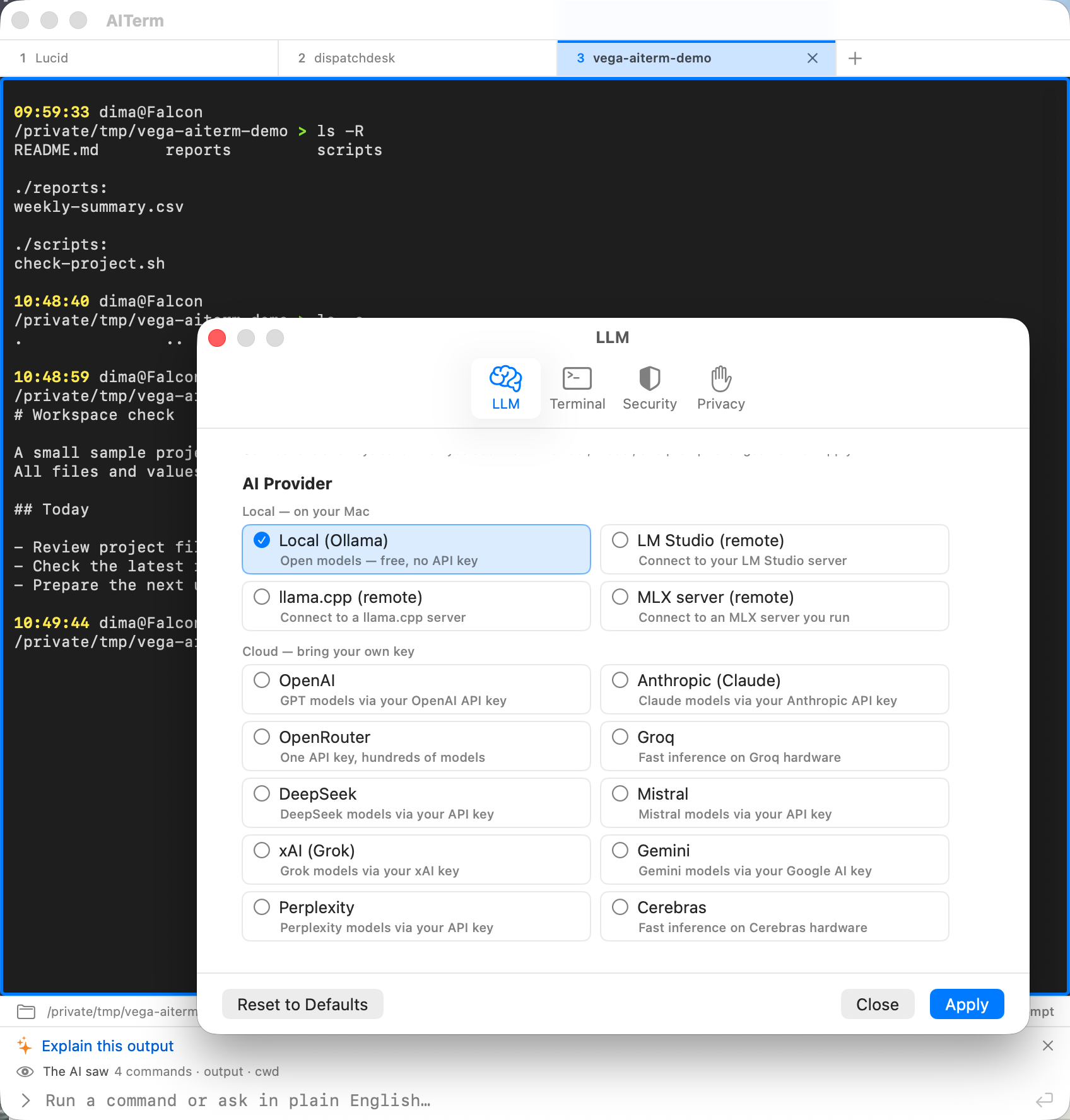 (full size, opens in a new tab)
Plate III Choose the AI that works for you. Local models and your own cloud connections.
Real app capture with sample project data. Click the image for a closer look.
A little confidence goes a long way. Review AI suggestions before running them, and the files an agent wants to write before they land. Risk labels and adjustable safety profiles help you make informed choices. Common secret patterns are redacted before an AI request leaves your Mac. If the AI you switched to can’t start, AITerm turns AI off and tells you why. It never falls back to the one you left.
When you’re ready for more · Pro
Found a flow that works? Save it. Have a bigger task? Work through it with an agent.
Turn a useful command sequence into a runbook. Add variables and reuse it for the next project.
Use /agent to approve each step. With /auto, eligible steps run automatically; others pause for approval or are blocked by your policy.
It shows its work. A run starts with a short plan that ticks off as steps succeed. A delete, move or permissions change says what it would touch before you approve it, like “Would delete 3 paths.” A file the agent wants to write is shown to you first: the path, the risk and the text it will write. After a run, “Undo last step” can load the reverse command, such as rmdir after mkdir, for you to review.
Tidy up ~/project
Plan
~/project (done)~/project/notes.md (pending)Review the command below, then press Return to run it (Esc to stop).
Would delete 3 paths.
Destructive rm -rf ~/project/.eslintcache ~/project/.stylelintcache ~/project/tsconfig.tsbuildinfo
/Users/ Caution
Approve Skip
Approve writes this file now. Skip tells the agent you declined.
In zsh, bash and fish, the agent waits its turn. It only sends a step when the prompt is idle and empty and you’re not working in the terminal yourself: not while a program runs, and not over a half-typed line or keys you typed ahead. Otherwise the step waits on its card and says why, like “Waiting — the terminal was busy.” Stop only interrupts the agent’s own command, never a program you started.
Waiting — the terminal was busy.
Paused — you have the terminal.
Add a managed Apple Silicon MLX engine, Amazon Bedrock, or Azure OpenAI to your setup.
Start something
The everyday AI terminal is free. Pro adds automation and more ways to use your AI.
Yours to keep
$0 forever
A real Mac terminal with AI help built in.
Download free for Mac/fix and plain-English /explainNo account or credit card needed. Cloud provider charges are separate.
Your next chapter
$99 / year per seat
$8.25 per month, billed annually.
Get Pro · $99/year (opens in a new tab)$9.99 / month per seat
Or $99 per year. Save about 17% with annual billing.
Get Pro · $9.99/month (opens in a new tab)Taxes calculated at checkout. Already purchased? Recover your license or manage billing.
Early-bird price, locked in for life. Try Pro for 14 days with the free download. The trial starts on first launch, no card needed.
One seat per person. For 10+ seats or invoicing, get in touch. Compare every feature.
Good questions
You can start with plain English. AITerm proposes a command you can review and edit, and /explain helps you understand output. You’re working in a real terminal, so take a moment to understand a command before running it.
A Mac with Apple Silicon and macOS 13 or later. Download AITerm, move it to Applications, and follow the setup assistant. Local AI needs an initial engine and model download. You can also connect a supported cloud account. Until your AI has really answered, a “Check AI setup” reminder stays in the status bar.
Yes. The native terminal, AI command suggestions, /fix, /explain, tabs, splits, and saved workspaces are free. Your first launch starts a 14-day Pro trial. When it ends, Free features stay available. Any cloud provider charges are separate.
With an on-device model, AI requests stay on your Mac. With a cloud connection, AITerm sends the request and relevant context directly to the provider you choose, with common secret patterns redacted first. AITerm never follows a redirect that would take an AI request off your Mac or to another server. If the AI you switched to can’t start, nothing is sent: AI stays off until you fix that connection or pick another. Read about data handling.
The terminal and downloaded on-device models work offline. Cloud AI needs a connection. Pro also needs periodic online license validation; if you stay offline for more than about six weeks, Pro features pause until you reconnect.
Only with your approval. With Pro, in /agent and /auto, the agent can propose creating or replacing a whole text file. The card shows the full path, the risk, and the exact text before anything is written; for a very long file it says how much of it you are seeing. Protected places, such as system folders, your SSH and shell startup files, .git folders and AITerm’s own settings, are refused. On the Personal profile, AITerm asks you to confirm again instead, and only “Write anyway” writes the file. It never writes through a link or creates folders, it keeps the file’s permissions, and every approved, refused or dry-run write is recorded in the Security Log. How file writes work.
Answer, and only answer. AITerm runs the official Claude Code or Codex tool with its own tools switched off, so it cannot run commands, read files, or search the web on its own. What comes back is text, and it goes through the same approval and safety checks as any other suggestion before anything runs on your Mac. This needs Claude Code 2.1.169 or Codex 0.153.3 or newer; an older version is asked to update.